 PrimalDesk
Open a Windows desktop or individual published apps without installing a client, and understand browser limitations.
Workspace is PrimalDesk’s browser client. Open Workspace, sign in to your PrimalDesk account and choose a computer. You do not need to install PrimalDesk Client on the computer you are using. The remote Windows computer still needs PrimalDesk Host, an internet connection and permission for your account to connect.
Connect
- Choose an available computer.
- Select Desktop or Applications, if the host offers both.
- Enter your Windows username and password for that computer. These are separate from your PrimalDesk account credentials.
- Wait for Windows to open your session.
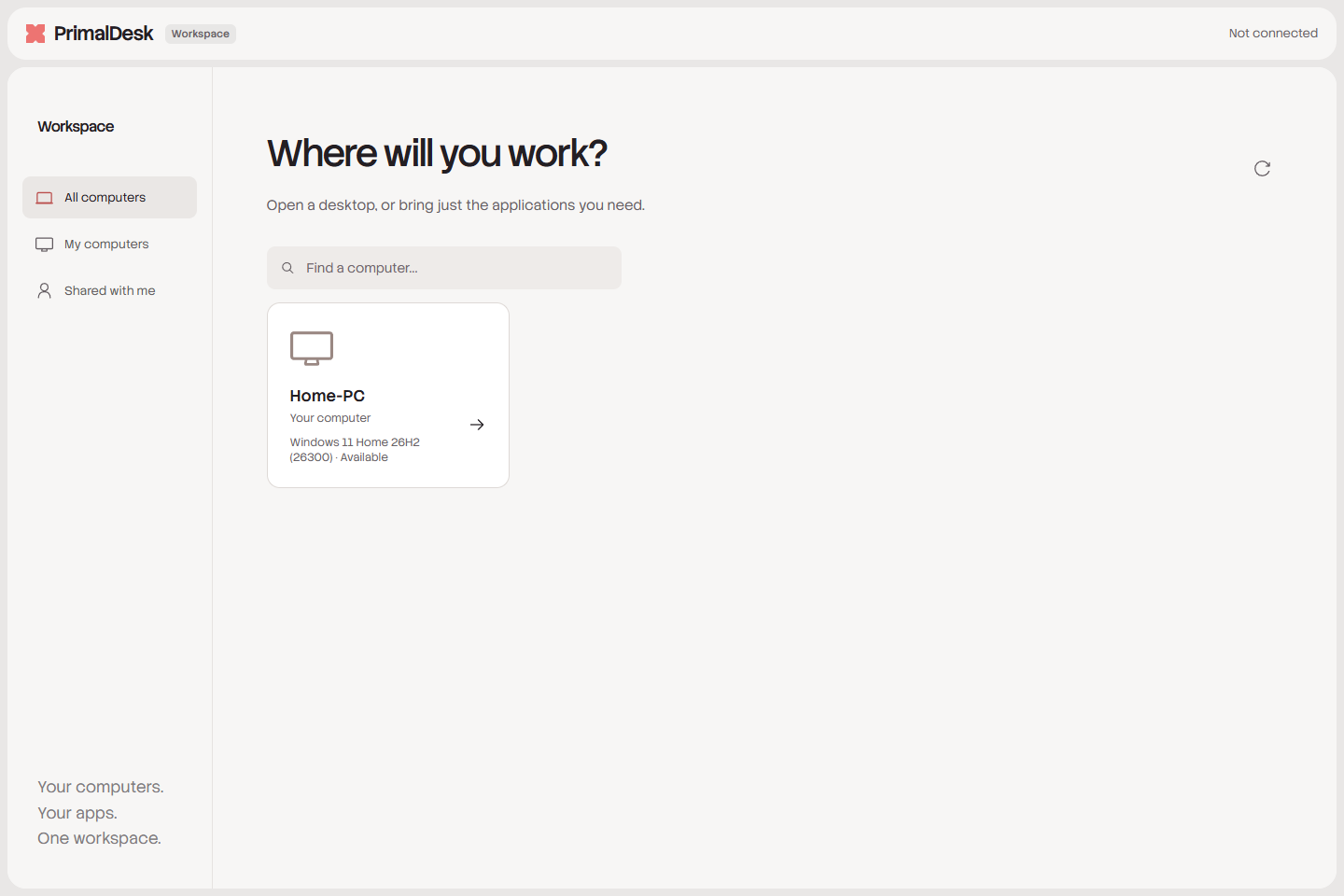
Use Desktop for a complete remote Windows desktop. Use Applications to launch published programs in separate windows inside the browser workspace. You can move, resize, minimize and maximize those windows; they remain inside the browser tab rather than becoming native windows on your local desktop. The host administrator decides which applications are published.
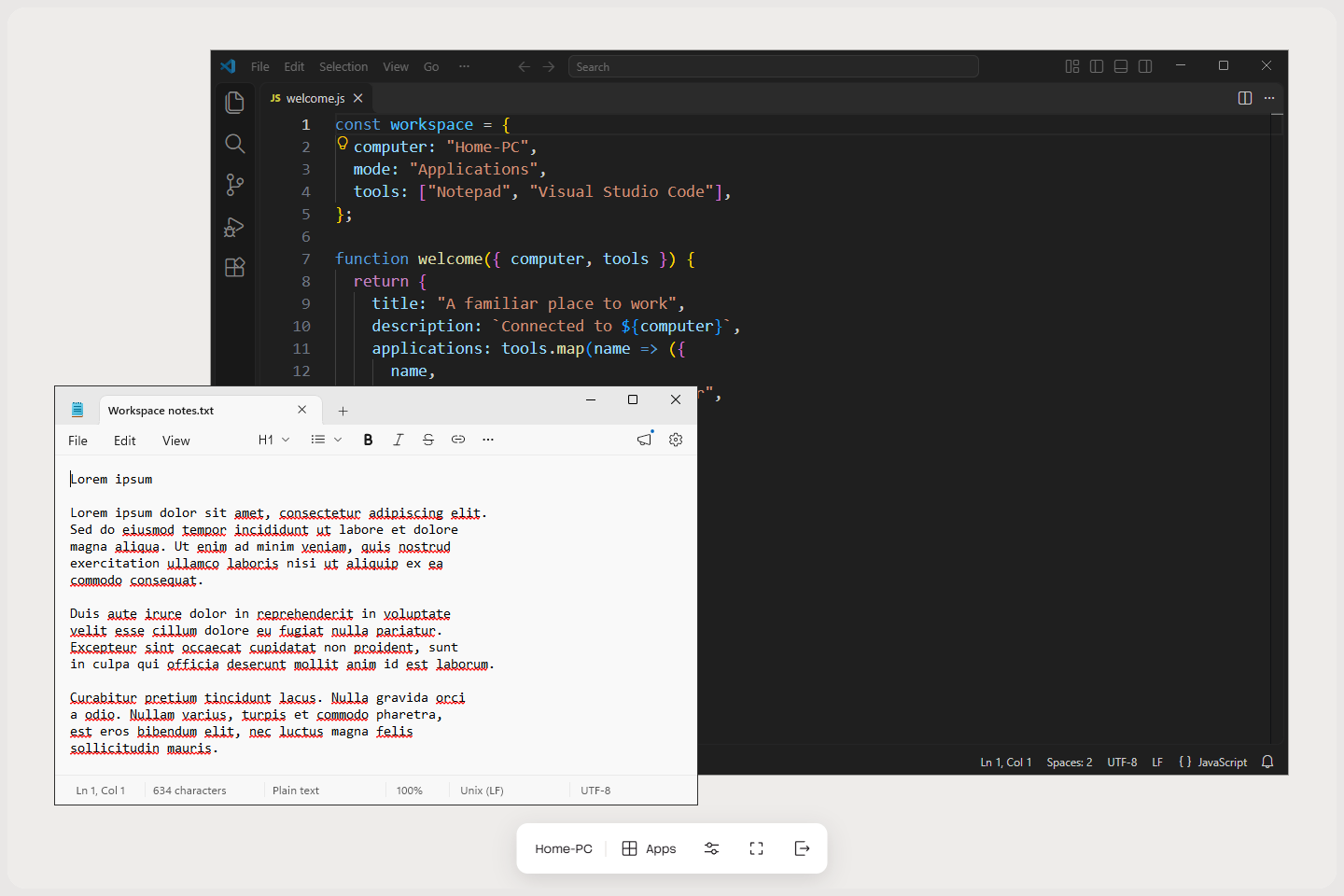
The Apps button opens your published applications and the list of open windows. The bottom toolbar also provides session settings, fullscreen and the controls for leaving the session.
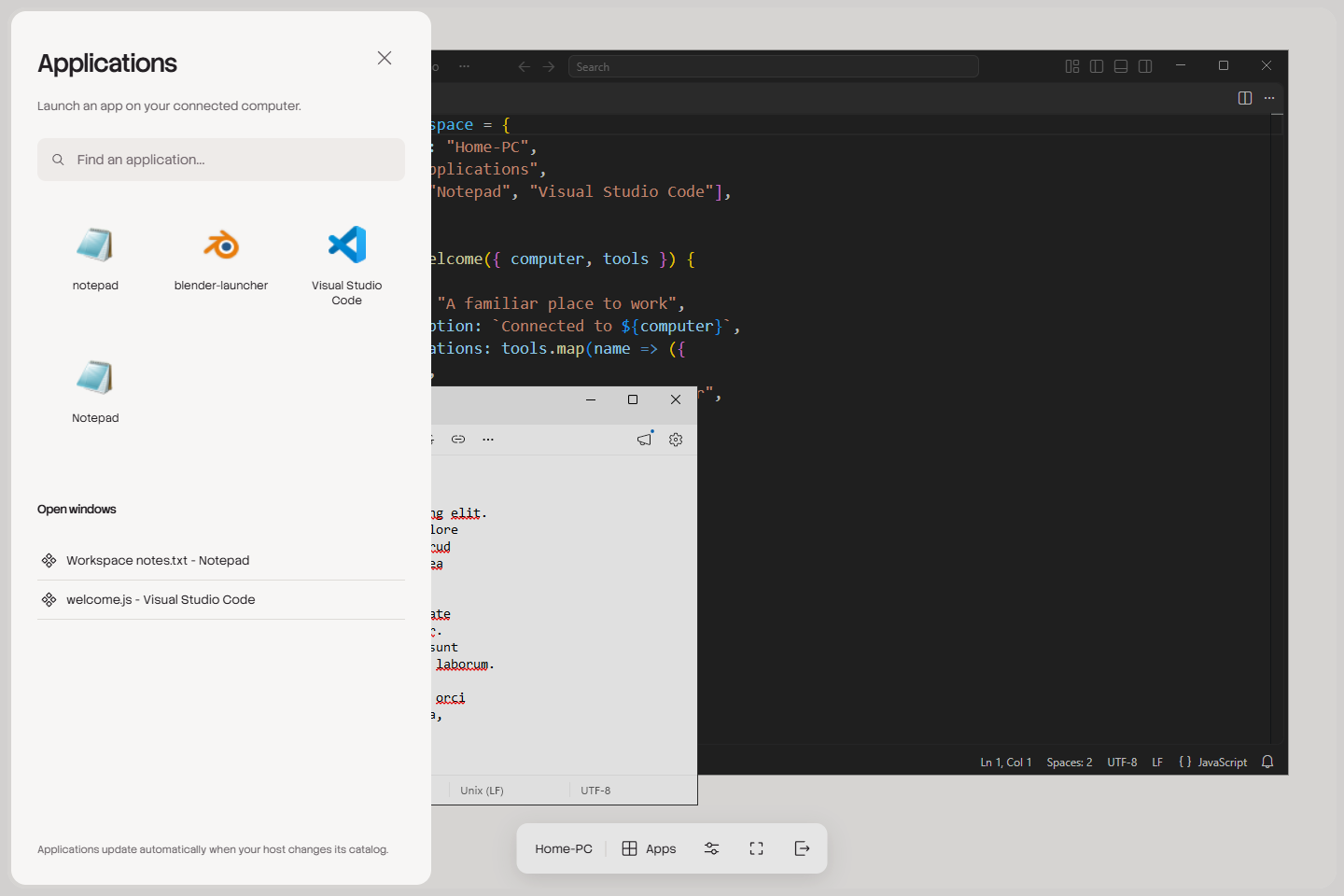
Image and window size
Apps can use pixel updates for static content and video for changing content. The choice can change while you work. Video adapts to network conditions and may look softer during motion. Pixel updates can mix lossless QOI and lossy JPEG. They reduce the need for continuous hardware video encoding in quiet windows, but do not guarantee exact pixels or immediate delivery on a slow connection.
Resizing the browser changes the space available to your Apps session. Maximized remote windows follow that space. A smaller browser window does not create a second physical monitor. Desktop display settings and browser zoom also affect how large the remote image appears.
Mouse capture and Escape
Games and other applications may request relative mouse input. In this mode the browser temporarily captures the pointer so movement can continue without reaching the edge of the window. Click the remote application when asked to capture the pointer.
Escape releases browser pointer capture. It can also leave fullscreen. An application that uses Escape for a menu or another command may therefore lose capture or fullscreen unexpectedly. Click back into the remote application to resume capture. PrimalDesk cannot reliably override the browser’s escape mechanism. The installed desktop client does not have this browser restriction.
Keyboard and browser permissions
Browsers and the local operating system reserve some keyboard shortcuts. Alt+Tab, the Windows key, Escape and other system combinations may act locally instead of reaching the remote computer. Fullscreen and keyboard capture can help in supporting browsers, but do not make every shortcut available.
Clipboard, audio playback, microphone access and fullscreen depend on browser permissions, browser support and sometimes a click from you. A browser may suspend or throttle an inactive or minimized tab. Codec support, including advanced color formats, also varies by browser and hardware. Features available in the installed client are not automatically available in Workspace.
When to use the installed client
Workspace is useful for quick access, a borrowed computer or a device where you cannot install software. For sustained work, games and demanding graphics, use PrimalDesk Client: its native rendering and input path can provide lower latency, it is better suited to unstable networks, and it supports forwarding system shortcuts without the browser’s pointer-capture and fullscreen restrictions. Actual responsiveness still depends on both computers and the network.
Leave a session
Disconnect closes your connection while leaving the Windows session and its applications running, subject to host policy. Sign out of Windows ends the Windows session and closes its applications; save your work first. If Windows or the host administrator signs out your session, Workspace returns to the computer list. Closing a browser tab is not a substitute for signing out.