 PrimalDesk
Run published Windows applications as individual windows on your local desktop.
Remote Apps is an experimental connection mode in PrimalDesk Desktop. Programs run in a separate Windows session on the host, while their individual windows appear on your local desktop. You use the same PrimalDesk client for Desktop and Apps connections.
Connect in Apps mode
- Select your host and choose Connect.
- The client checks which connection modes the host offers. If both Desktop and Apps are available, choose Apps in the mode dialog. If only one mode is available, the client continues with that mode.
- Enter the Windows credentials for the account you want to use on the host.
- Open an application from the published list. The administrator decides which applications are available; the Windows account must also have permission to run them.
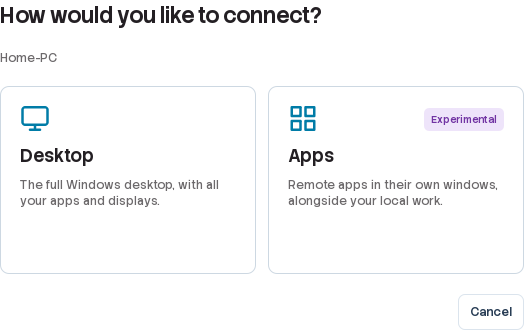
The mode check happens before Windows credentials and session creation. Seeing a host online does not by itself mean that it offers Apps.
What to expect
Apps windows integrate with the local Windows desktop, including its taskbar and window management. You can also reopen the published application list from the PrimalDesk tray menu. Keep the client running while you work. When closing its main window during Apps use, choose whether to exit the program or keep working through the tray.
Apps is still experimental. Test the programs, displays and Windows builds you intend to use before rolling it out. Start with Integration, Rendering and the version matrix.
Administrators can follow Apps publishing to prepare the catalog. Read Session types before switching between Apps and Desktop.