PrimalDesk
Understand the green and blue window frames, automatic video switching and presentation counter.
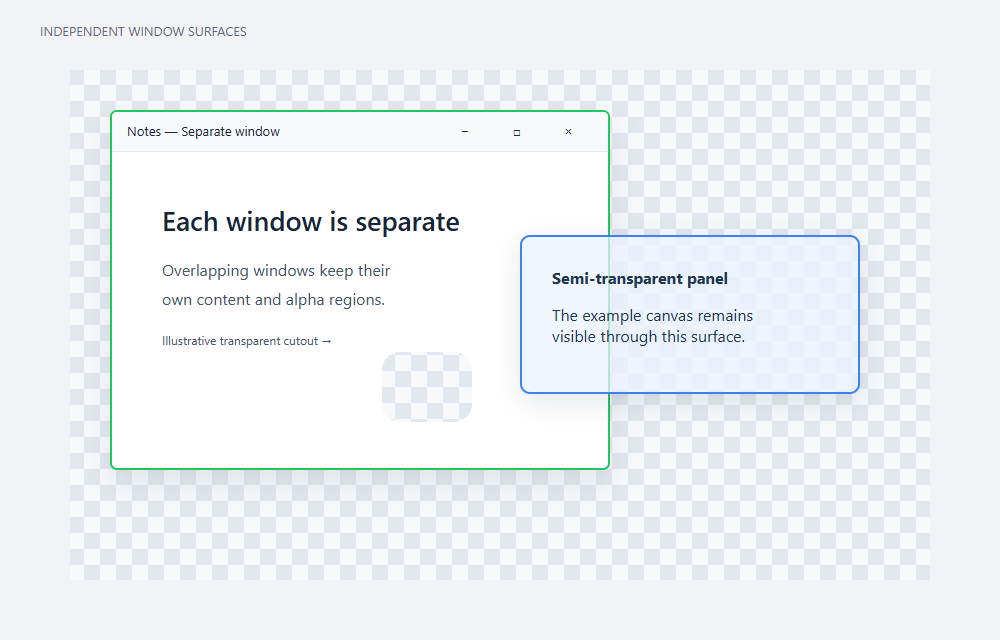
Each remote window has a green or blue frame. It distinguishes remote windows from local ones and shows how the window’s content is currently being delivered. Different windows can use different modes at the same time.
Pixel updates — green frame
A green frame means pixel updates. PrimalDesk sends changed regions as compressed images. This mode can mix lossless QOI with lossy JPEG, so a green frame does not promise exact pixel values or artifact-free text.
It is a good fit for interfaces that change infrequently or only in small areas, such as documents, settings and many business applications. Keeping these windows out of continuous video reduces hardware encoding work and the number of simultaneous video encoding sessions. Pixel updates still require capture, compression and decoding; they do not eliminate processing costs.
Sending changed regions can also reduce traffic, depending on content, update frequency and compression. It is not a guarantee of lower bandwidth than video, especially during motion.
Hardware video capacity depends on the GPU, driver and available resources. NVIDIA also applies concurrent-session limits to some GPUs; consult its NVENC documentation for your configuration rather than assuming one universal window limit.
Video — blue frame
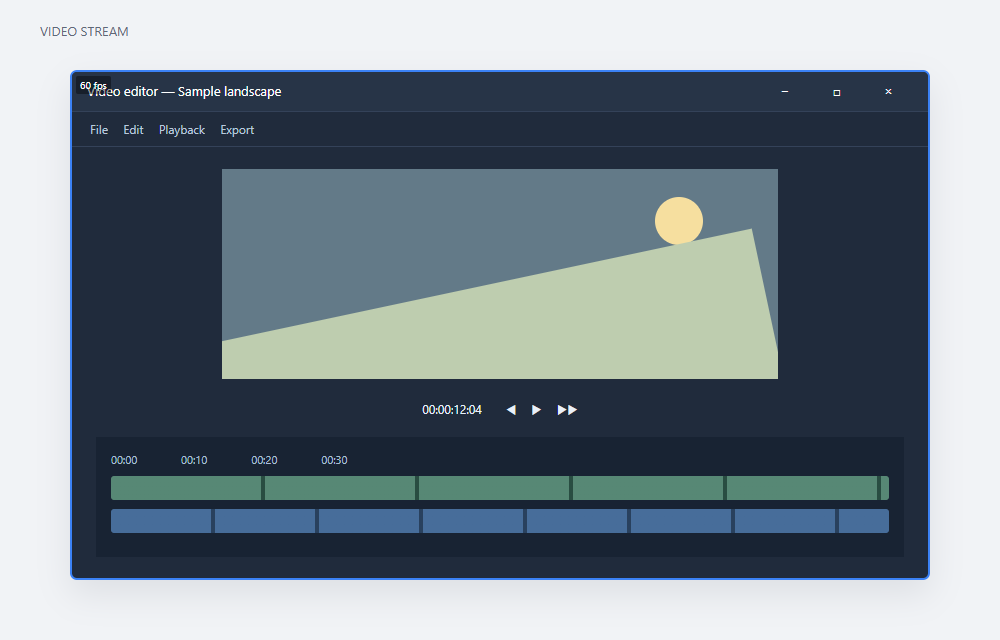
A blue frame means the window is delivered as an H.264 or HEVC video stream. PrimalDesk switches automatically when large areas change frequently. The whole window becomes a video stream, not just the busy region. When activity falls, automatic mode can return to pixel updates.
You can choose a preferred codec in the client. HEVC is used only when the host permits it and both sides successfully negotiate it; selecting it does not force an unsupported codec.
What the FPS counter measures
The small counter in video mode counts frame presentations on the client. It describes the final output, not the application’s render rate or simply the configured FPS limit. It can be limited by:
- How frequently the host produces frames for presentation.
- Frames discarded by the latency policy to avoid displaying old content.
- Frames lost or discarded because of network instability.
- Local decoding, graphics resources and presentation capabilities.
HDR10 and 4:4:4
The video path supports HDR10 and 4:4:4 when HEVC negotiation succeeds and the required host policy, encoder, decoder and display capabilities are available. These options are best-effort: not every hardware codec supports HDR or 4:4:4, and HEVC support alone does not imply support for either. Do not assume that every video-mode window is HDR or 4:4:4.
Always use video for an application
For programs that continually redraw large areas, such as games or video editors, an administrator can enable Force video when publishing the application. This starts the application in video-only mode rather than waiting for automatic switching.